Below are answers to the most frequently asked questions. If your question cannot be answered from the FAQ’s listed below click here to send us your question.
Getting Started FAQ’s
Importing an object into ARCHICAD is a simple process using the following steps:
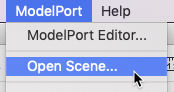 Select the ModelPort menu and Open Scene.
- In the Open Scene dialog select the file to import into ModelPort.
- The object will be displayed in the ModelPort Viewer where you can change scale, rotation, materials, reduce polygon count and other parametric editing options.
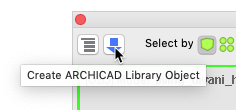 When you’re ready to finalize the object import and convert into an ARCHICAD object click the “Create ARCHICAD Library Object” button.
- The object can now be placed into your project.
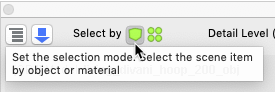 Selection by Sub-Object
- Edits the object as a whole
- Selection by Material
- Allows you to select individual elements in the object
To use these two options select the green buttons in the upper left of the ModelPort Viewer. Once selected click on the model to edit it as a whole or to select individual elements.
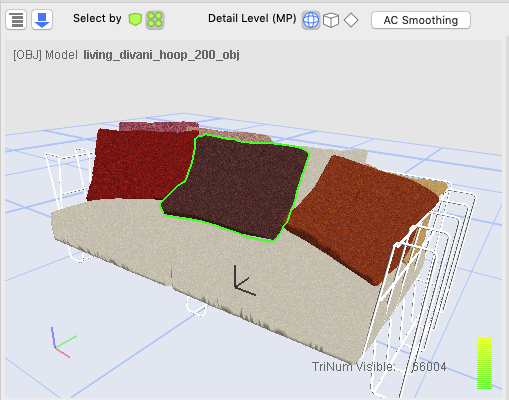 Example of Selection by Material:
- An individual pillow can be selected and then the material color, texture, texture size and other options can be edited.
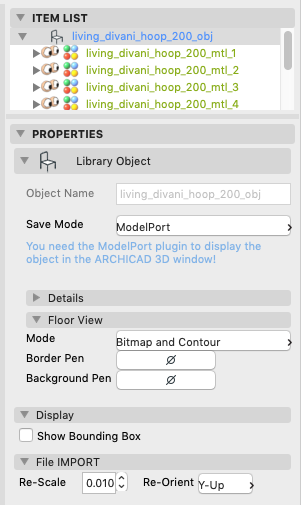
At the bottom of the Properties panel you will see controls for Re-Scale and Re-Orient. Use these two options to change the object scale or rotate it around the XYZ axis.
File Format FAQ’s
 a The most important thing to keep in mind is that each 3D file format is specialized for a certain task (ie: visualization, animation, printing, CNC or games). So there is no one format that is the best for importing to ARCHICAD. The good news is that with the release of ModelPort 2.0 users now have access to wider range of file formats such as MODO, Lightwave, Blender and DXF in addition to the popular OBJ and DAE formats as well as the standard FBX format. FBX and DAE are both full scene formats which means they carry more information with the file. FBX is a proprietary Autodesk format while DAE is an open format. The OBJ file format is a simple data-format.
FBX® is a proprietary file format developed by Kaydara and now owned by Autodesk. FBX data exchange technology is a 3D asset exchange format compatible with many 3D tools. FBX facilitates higher-fidelity data exchange between several Autodesk content creation packages and supports certain third-party and propriety applications. With FBX in your pipeline, it’s easier to transfer files, retain more data, and work more efficiently.
PROS: A modern format that retains more information during an exchange as well as the only exchange format that holds rigging and animation information. Since it is a newer format it holds more complex material information than OBJ. Quad topology is retained.
CONS: Older versions of the FBX format often exchange model information better than newer versions.
The OBJ file format is a simple data-format that represents 3D geometry alone — namely, the position of each vertex, the UV position of each texture coordinate vertex, vertex normals, and the faces that make each polygon defined as a list of vertices, and texture vertices. Vertices are stored in a counter-clockwise order by default, making explicit declaration of face normals unnecessary. OBJ coordinates have no units, but OBJ files can contain scale information in a human readable comment line.
PROS: The most popular exchange format for 3D models, OBJ can be exported and imported by just about every 3D application. Quad topology is retained.
CONS: The OBJ format is a unitless file type so getting the correct scale is sometimes a problem. It also does not hold rigging or animation information.
Collada files are XML files with a .dae extension which stands for “Digital Asset Exchange.” It is a 3D interchange file format used for exchanging digital assets between multiple graphics programs; based on the COLLADA (COLLAborative Design Activity) XML schema, which is now owned and developed by Autodesk.
PROS: If you want to import SketchUp objects from the 3D Warehouse there is usually a DAE format option in addition to the standard SKP format.
CONS: The DAE format is not as heavily used as the OBJ, FBX and Alembic formats.
3DS is one of the file formats used by the Autodesk 3ds Max 3D modeling, animation and rendering software.
It was the native file format of the old Autodesk 3D Studio DOS (releases 1 to 4), which was popular until its successor (3D Studio MAX 1.0) replaced it in April 1996. Having been around since 1990, it has grown to become a de facto industry standard for transferring models between 3D programs, or for storing models for 3D resource catalogs (along with OBJ, which is more frequently used as a model archiving file format).
Despite its popularity there are some disadvantages:
- The 3DS format is an old format that can be buggy.
- Lost data often occurs when importing a 3DS object into ARCHICAD.
- Texture’s applied to an imported 3DS files can often be corrupt.
- The number of vertices and polygons per mesh is limited to 65536.
- The 3DS format only stores 3 sided polygons and ARCHICAD does not handle 3 sided polygons very well.
- ARCHICAD has problems applying texture display on 3 sided polygons.
Yes, MODELPORT uses the Autodesk FBX SDK which is the same code used by Autodesk to create a bridge between their popular 3D software programs: Maya, Softimage XSI, 3DStudio MAX, etc. Using the FBX SDK means we can provide a reliable connection to these and many other 3D programs.
Yes, you can export FBX files from Revit and import these files as 3D objects in ARCHICAD.
No, the 3DS format is just an object format for 3DS Max. The 3DS Max file is a scene file…not an object file, and contains all the scene information. Quite often 3DS Max users will use OBJ and FBX object formats rather than the 3DS format because OBJ and FBX are far more robust and have less limitations.
Save Mode & Performance FAQ’s
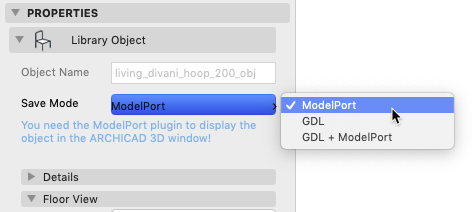
ModelPort 2.0 introduces a new “ModelPort” format that creates a smaller file size compared to the standard ARCHICAD GDL format. Here is how the three Save Mode options compare:
- ModelPort : This NEW Save Mode significantly reduces the file size of imported objects and models.
- GDL : Standard ARCHICAD format but doesn’t store the extra ModelPort information and creates a larger file size.
- GDL+ModelPort : Provides all the benefits of both options above but creates the largest file size of the three options.
In order for other team members to view objects in the ModelPort format in 3D they will need to download the ModelPort plug-in on their computer. With the plug-in they will be able to view ModelPort objects in 3D but not edit or change them without their own license. It can be downloaded for FREE at this link:
If a team member does not have ModelPort the Floor Plan symbols will be maintained but the imported objects will show the warning “Requires ModelPort Plug-in” in the 3D Window.
The ModelPort format stores additional information in the object and significantly reduces the size of imported files. If you do not want to use the ModelPort format you can switch to the GDL Save Mode but it doesn’t store the extra, editable ModelPort information and creates a larger file size. If you switch to the GDL+ModelPort Save Mode this option will maintain the additional stored information but would create a larger file size for the imported object.
Some objects can have high polygon counts which can decrease the performance of your project. ModelPort offers a Polygon Editor which can be used as follows:
- Object Polygon Reduction
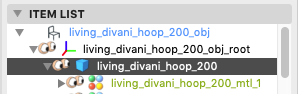 Choose the “Select by Object” green button in the upper left.
- In the Item List select the item that shows an Object icon (blue cube)
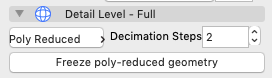 In the Properties select the Poly Reduced option from the pop-up menu and set a number for the Decimation Steps.
- When you’re satisfied with the polygon reduction click the “Freeze Poly-reduced Geomet
 ry” button.
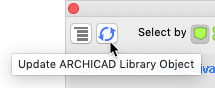
 - The final step is to click the “Update ARCHICAD Library Object” button.
Note: When using the Polygon Reduction you’re altering the geometry of the elements in the model. The more you reduce the polygon count the greater impact of change to the object.
ModelPort opens the door to a world of new objects but some objects may create a performance issue with ARCHICAD. Models with a high polygon number can slow down ARCHICAD so we recommended moderate or low polygon density for imported models. While there is no optimal value for a polygon count, since performance will vary depending on hardware, our testing shows that a moderate polygon count is between 25,000 to 50,000 polygons. We also found that models with up to 100,000 polygons generally work well without any issues.
When importing a model you can view the Import Statistics in ModelPort before importing into ARCHICAD. In this panel you can view the number of imported items, number of polygons, vertices and the size of the scene Bounding Box.
TurboSquid has an excellent search option that allows you to refine a search by setting a polygon count. The search can be set to the following polygon count options:
- Low: Up to 10k polygons
- Moderate: 10K to 50K polygons
- High : 50K to 100,000K polygons
- Very High : Over 100K polygons
The majority of objects on TurboSquid are available under 100,000 polygons.