
MODELPORT ACCESS MORE CONTENT
Increase access to third party, manufacturer and AI generated assets

On using the new AI integration… “Just finished creating three pieces of furniture in less than an hour. Previously this would have taken a day minimum”
– Michael Chacon, Architect, MAC Modus
AI GENERATED ASSETS
Create 3D content from an image or text prompt

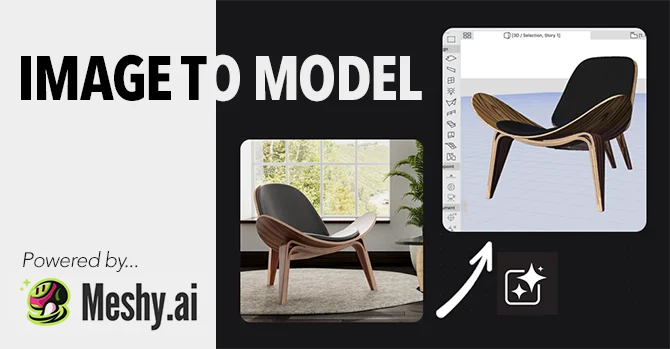 AI Integration
- Convert an image into a 3D model
- Turn sketches into interior assets
- Manage polygon count to optimize model performance
- Edit the AI generated texture
- Create a Studio or Pro account on meshy.ai
- Click the API menu & create an API key
- In ModelPort select the "Import - from Al" menu and paste API key
- AI Generator will show your credits
- Start creating 3D models
Review AI integration documentation >>
- Download an image or copy the image URL
- Open the AI Generator from the ModelPort menu
- Import the image file or add an image link
- Click generate
- Click the Text to 3D tab and enter a text prompt
- Open the AI Generator from the ModelPort menu
- Import the image file or add an image link
- Click generate
- Open the AI Generator Settings panel
- Click the Check Box for the Maximum Triangle Number
- Enter a Maximum Triangle Number for the target polygons
- Click generate
EDIT & MANAGE AI MODELS
Remesh, update textures and refine the polygon count
- Click the Refine with AI button to open the AI Generator
- Select the Image to Texture tab/li>
- Choose a new image or add an image link
- Click the Refine Model button
- Click the Refine with AI button to open the AI Generator
- Select the Remesh tab/li>
- Enter a Triangle Number to reduce the polygon count
- Click the Refine Model button
- Click the Refine with AI button to open the AI Generator
- Select the Remesh tab/li>
- Enter a Triangle Number to reduce the polygon count
- Click the Refine Model button
- Select the object on the Floor Plan or in 3D and click the MP button to open the ModelPort Editor
- In the Items List select the material to edit
- Customize the material properties such as color, diffuse, ambient, specular and more.
- Click the Update button when finished
CONTENT & MANUFACTURER
Import content from 3D Warehouse and more
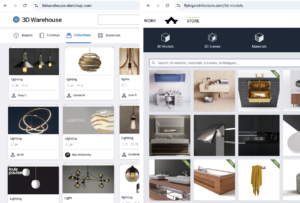 3D Content Providers
ModelPort expands access to content for Archicad users with 15 import formats including SketchUp, FBX, Collada, 3D Studio, Modo, Lightwave and X3D.
Here's a list of popular content providers of both FREE and paid content used by ModelPort users:
 Manufacturer & Designer Product Content
There are numerous content providers who work with manufacturers and designers to offer 3D models of products which can also include product options, specifications, choice of materials and other more.
Below are examples of popular manufacturer and designer content providers used by ModelPort users:
When importing 3D content ModelPort provides access to 15 import formats commonly used by content providers, manufacturers and designers including...
- SketchUp SKP
- Autodesk FBX
- Wavefront OBJ
- Collada DAE
- 3D Studio 3DS
- and many more!
For formats not supported by ModelPort, such as Revit RFA, IFC and Rhino 3DM, you can use “Import from Archicad”.
First import using Archicad’s built-in import options, place and select the Object then choose "Import from Archicad" in the ModelPort menu.
SKETCHFAB INTEGRATION
Search & open content with the ModelPort Browser
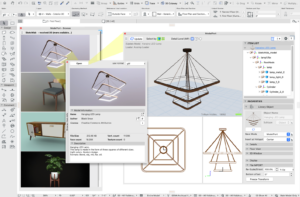 Access to over 1 million models
Every day 3D artists, designers and architects on Sketchfab are adding a wide variety of content to enhance your visualization. This new release enables our ModelPort Browser to search this cloud library and directly import into the Editor using the "Open" button.
The Sketchfab library boasts over 1 million models available for free download under the Creative Commons license as defined in the Sketchfab terms of use.

Using the ModelPort Browser you can download models from cloud libraries with Sketchfab being our first integrated solution enabling...
- Thumbnail image previews as a list in the ModelPort Browser
- Access to the model information by double clicking a thumbnail
- Content open directly into the ModelPort Editor
- Customize the location of the download folder
The new Browser Options dialog, accessible from the top left corner of the browser palette, can be used to search the Sketchfab cloud libraries and files in local folders. The filters can be used to refine a search including...
- Keywords
- Author
- Face number min/max
- File size min/max
- Staff picks
It's a one-step process to download and open a Sketchfab model into ModelPort.
After searching the Sketchfab cloud library select the model you want to use, click the Open button and ModelPort will automatically download a copy of the file and open it directly in the Editor.

“You should know that ModelPort is for me the single most useful addition to Archicad to help mine the 3D Warehouse and other sites regularly.”
– Robert Davis, Architect